
Packaging an application with Omnissa App Volumes is an efficient way to deliver software to users without modifying the golden image each time a new application is required. Instead of installing applications directly into the base image, App Volumes allows administrators to package them separately and attach them dynamically to virtual desktops.
This approach simplifies application management by virtualizing applications and delivering them only to entitled users. As a result, administrators can maintain a cleaner golden image while streamlining application deployment and ongoing maintenance.
Before you get started, there are a few prerequisites:
- Ensure that the status of the package you want to build is
Unpackaged. - Ensure that the packaging machine meets the criteria as mentioned in Preparing a Packaging Virtual Machine.
- Ensure that you have created a clean snapshot of this virtual machine as part of the App Volumes agent installation.
- When packaging an MSIX application, ensure that all prerequisites of the applications are completed.For example: Prior to packaging a Microsoft Teams application, ensure that you follow the prerequisites mentioned for Microsoft Teams in this Microsoft documentation.
- At the time of packaging, ensure that you turn off the auto updates for the application which is getting captured.
In this tutorial, I will be packaging IrfanView, a simple and lightweight Image viewer, for use with App Volumes.
Create the Application
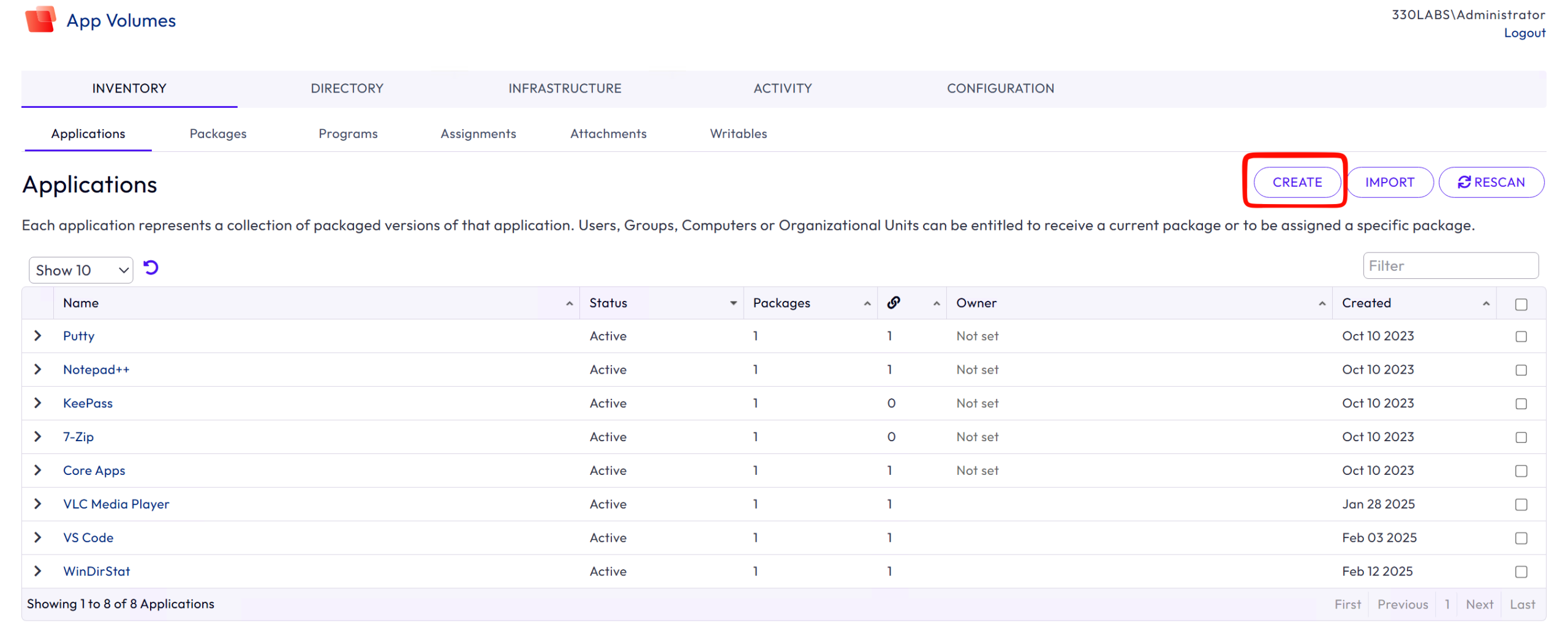
First, open your App Volumes admin console. Navigate to Inventory > Applications and select Create
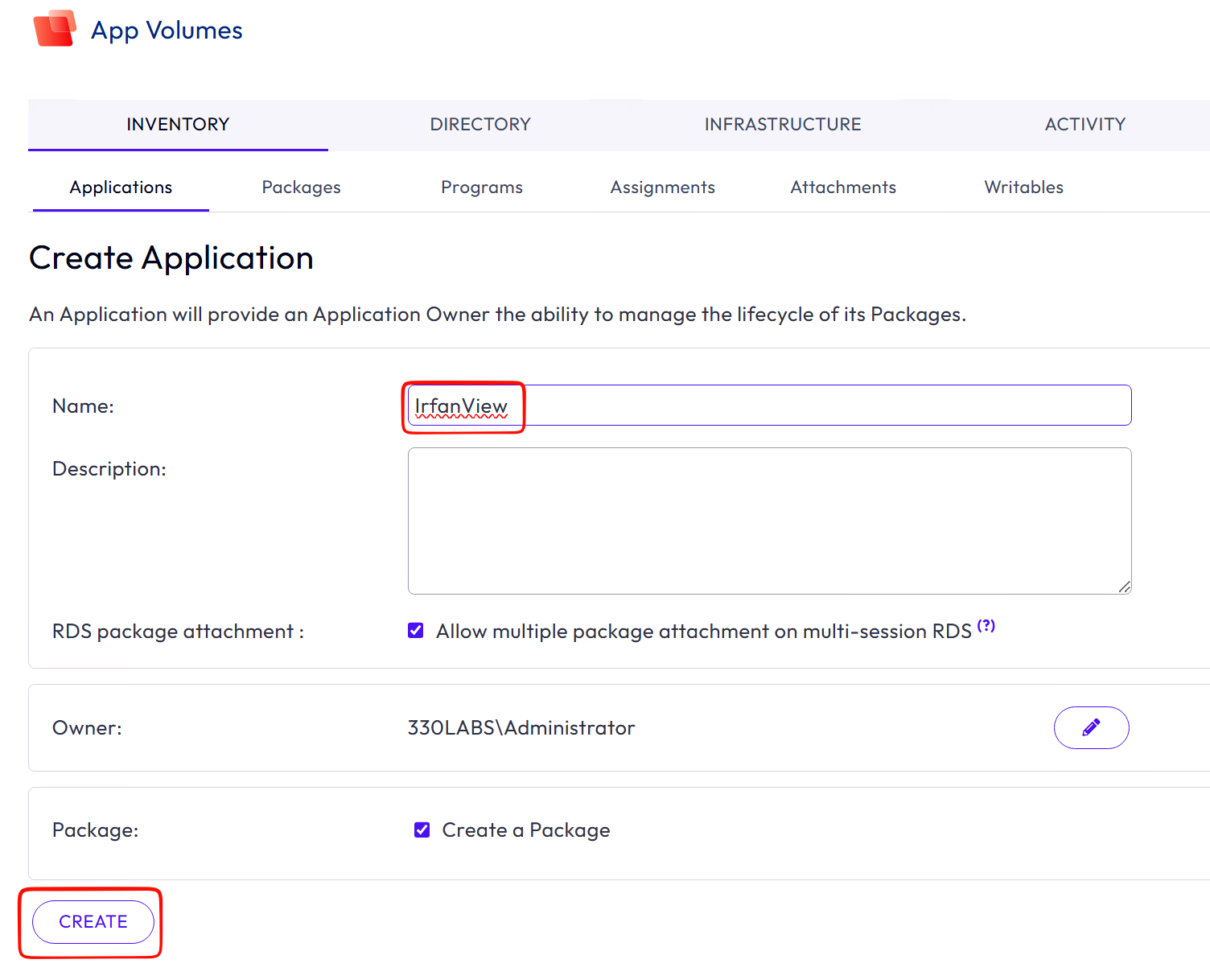
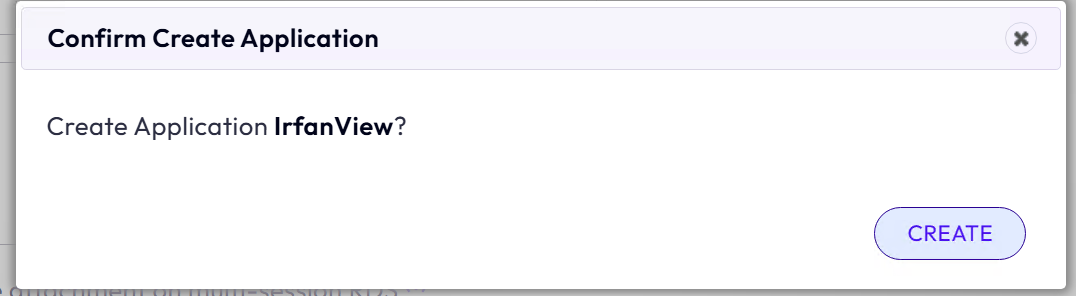
Next, give the application a name. Do not enter a version number here. Press Create and confirm.
Create the Package
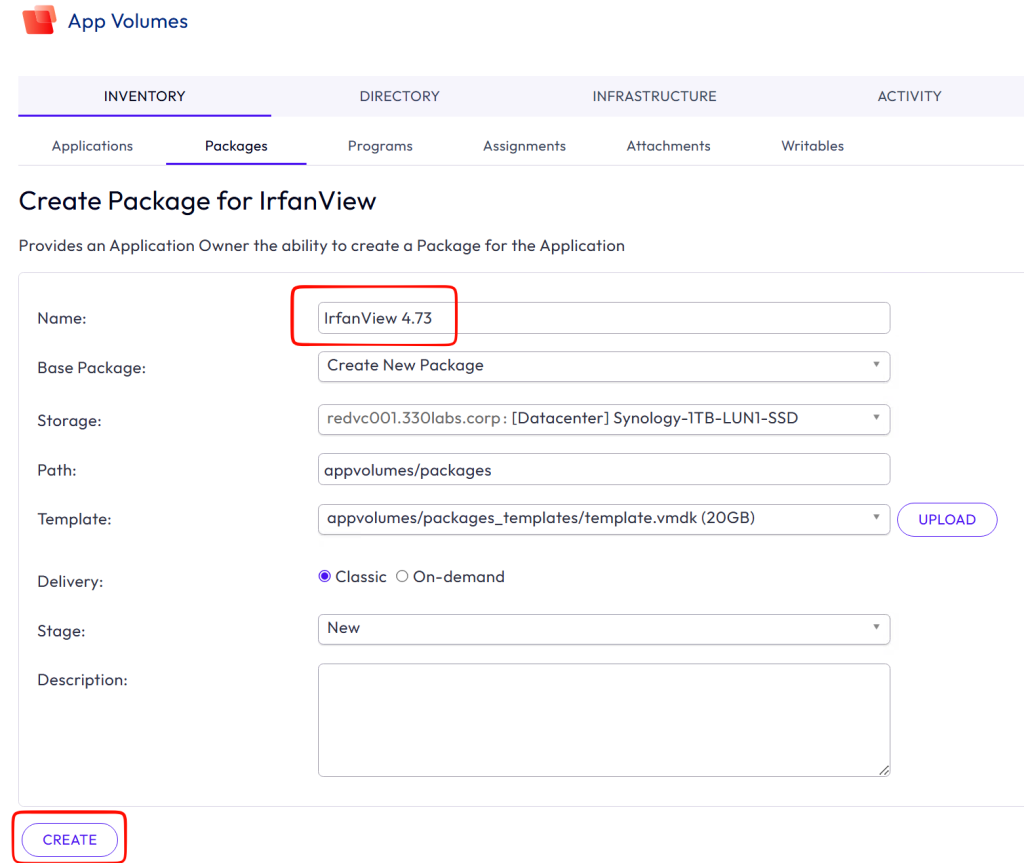
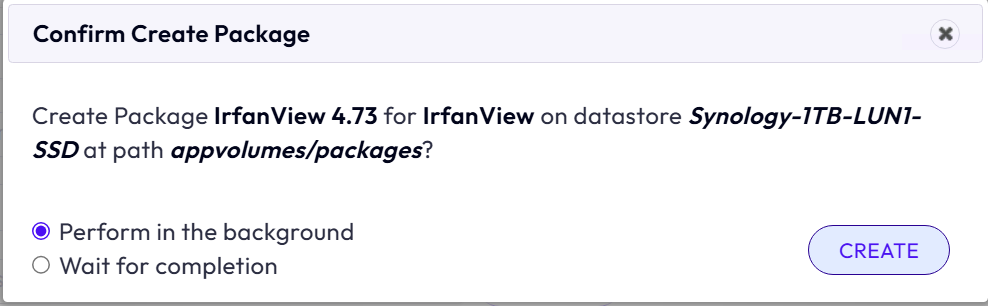
Now select the option to create a package for the newly created application. Give the package a name, including a version number then press Create. Confirm the creation.
Package the Application
After creating the package on the App Volumes manager, you can start the process of packaging the application using a dedicated packaging VM.
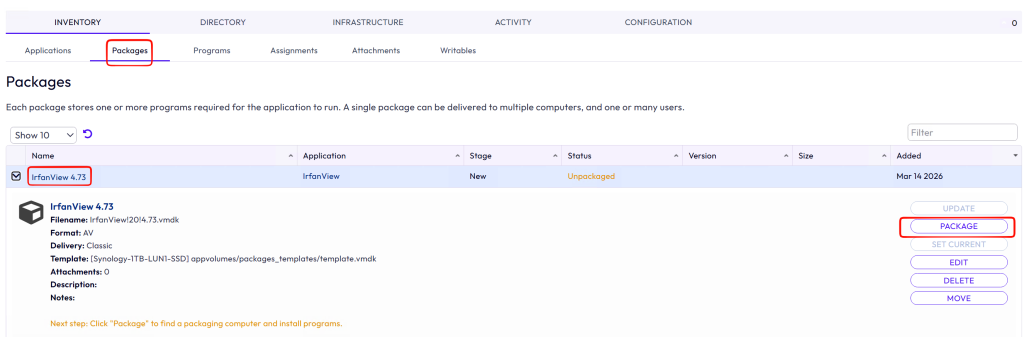
Browse to the package you just created, and select the Package option
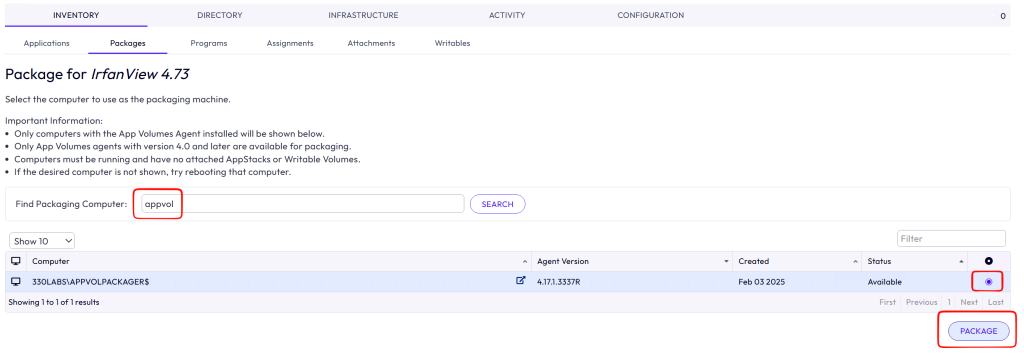
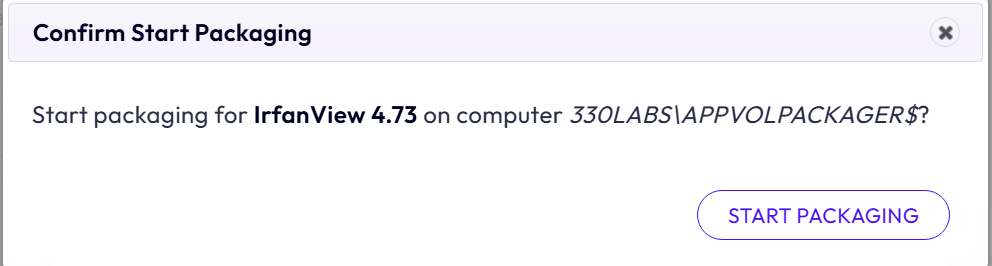
Search for your packaging VM. Select it and press Package. Confirm the process in the confirmation box.
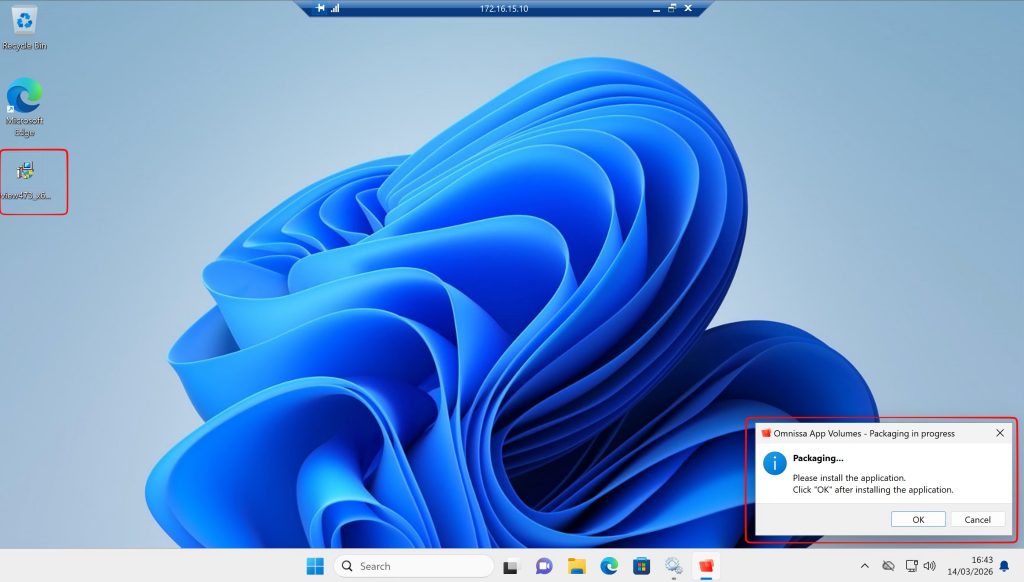
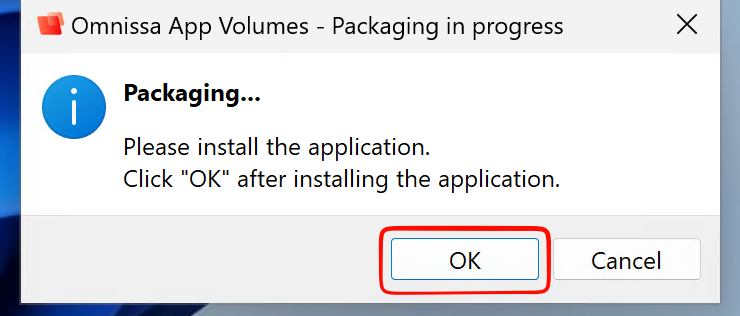
Head over to the packaging VM. Log on to the VM ideally using a dedicated account for packaging. The account must have admin credentials and must not have any App Volumes packages assigned to it. You will see a dialog box confirming that the Packaging process has begun. Do not press OK or Cancel until you have finished installing the application.
Here you can see I have the IrfanView installer located on the desktop.
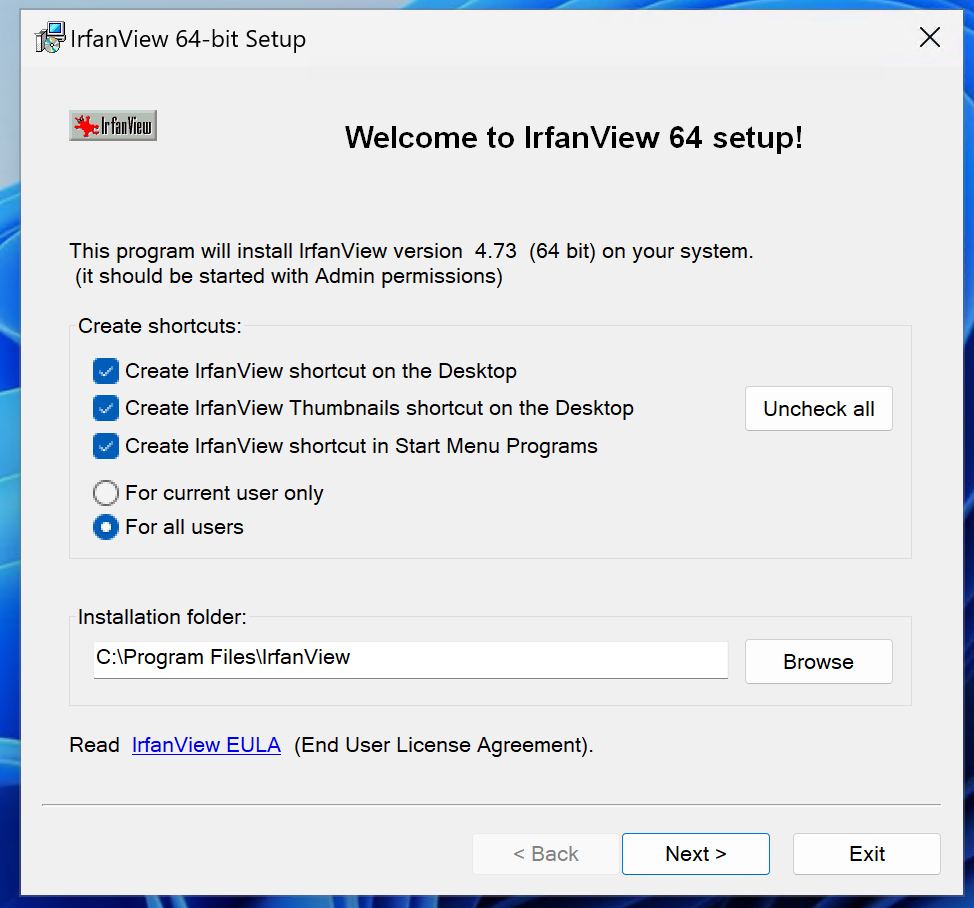
I begin installing the application and following the instructions and choosing the necessary options.
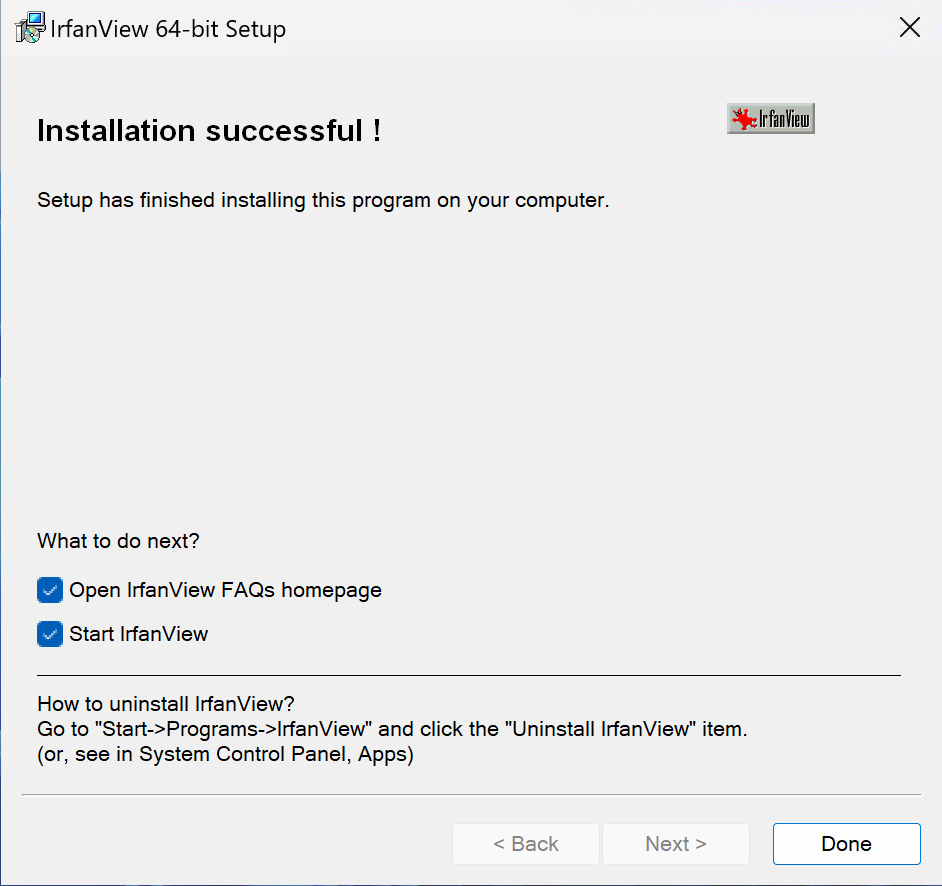
I launch the application to ensure it opens with no issues.
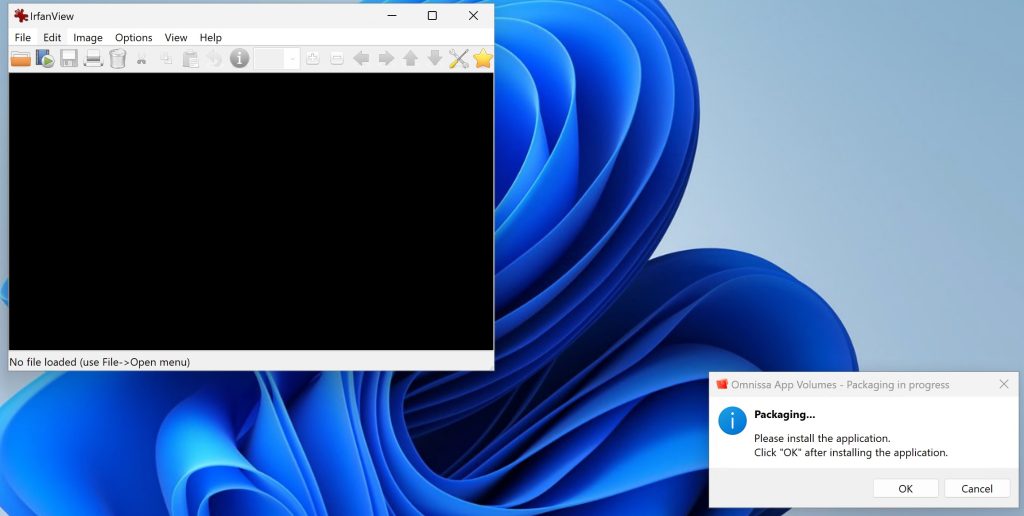
Close the application and press OK to complete the packaging process.
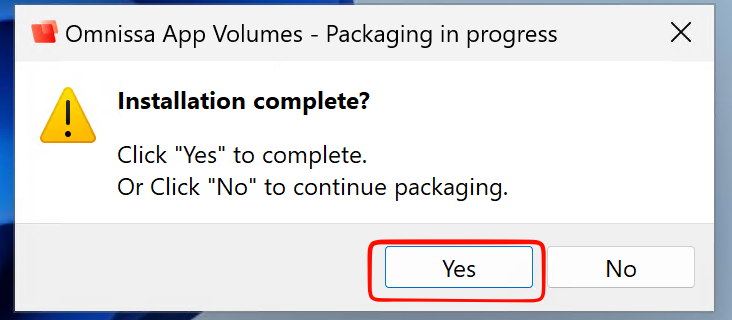
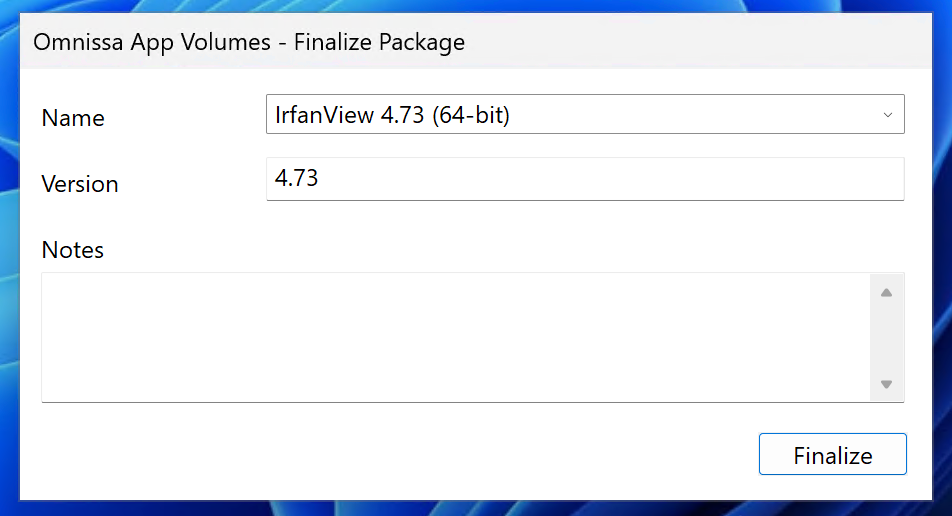
The name and version should populate by default. Press Finalize.
Press OK to restart.
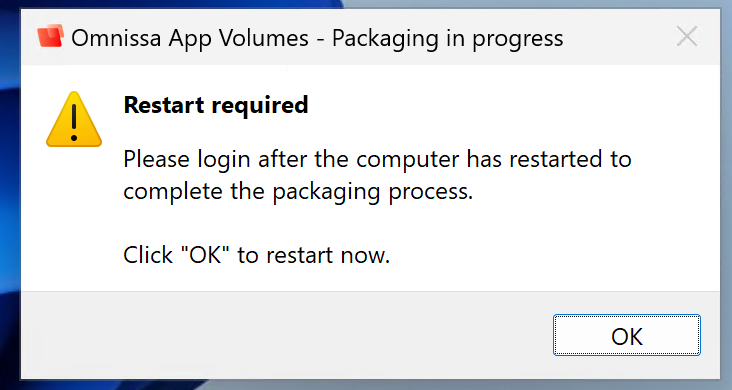
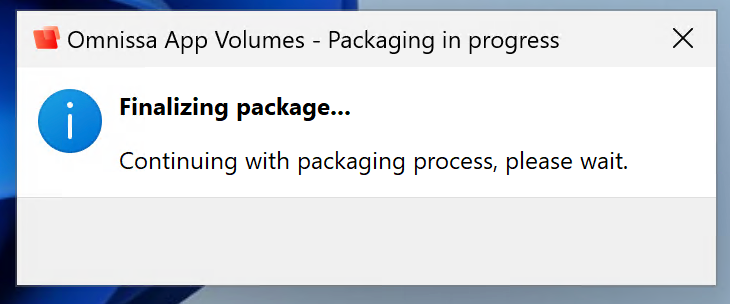
After reboot, you will receive a confirmation if successful. Press OK.
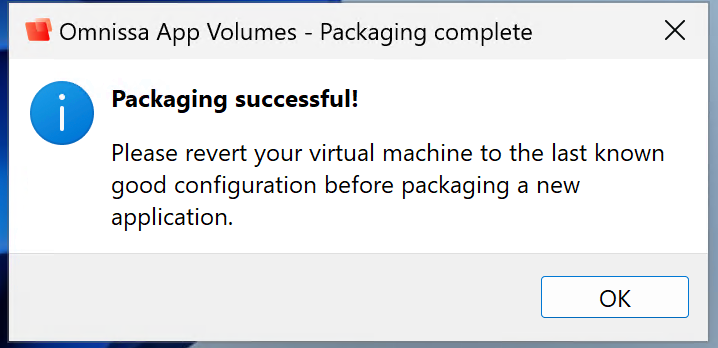
Set Package as Current
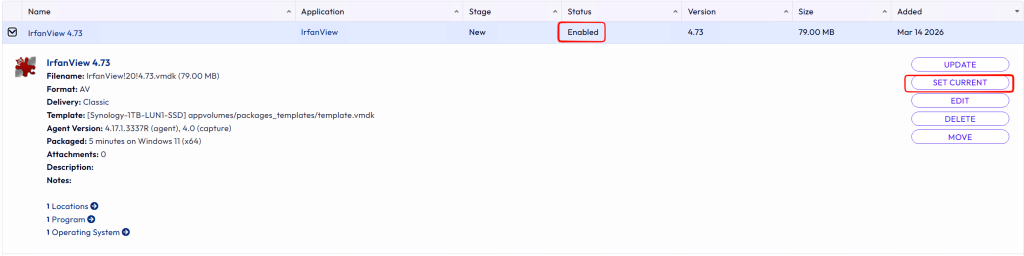
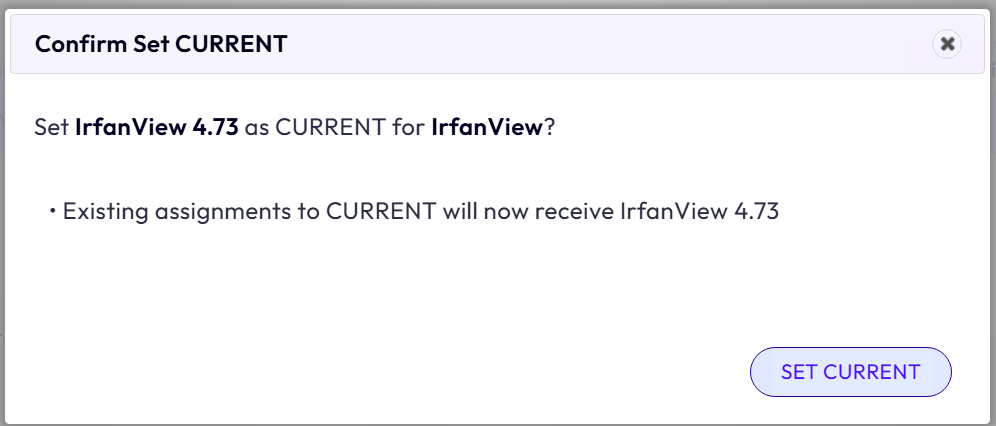
In addition, head over to App Volumes manager. You will see that the package status is now enabled. Press set current to assign it with the current marker.
Restore Snapshot
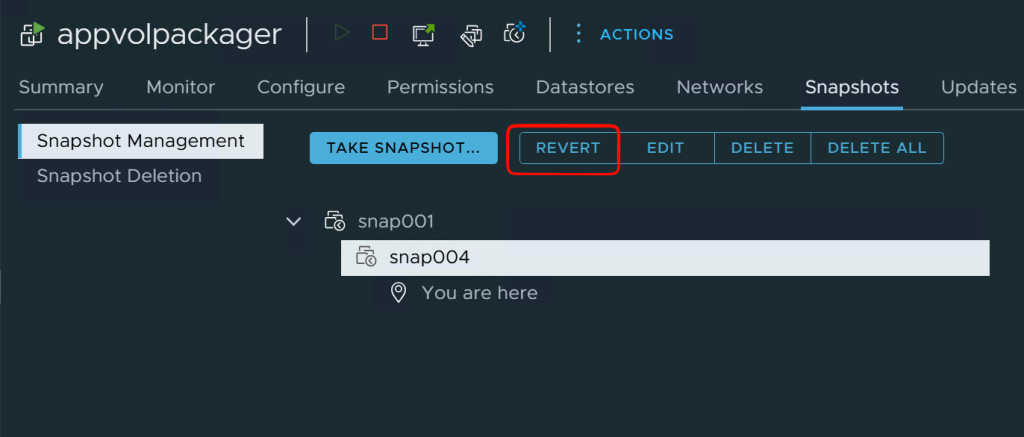
Finally, head over to vCenter and restore the packager VM to a clean snapshot.
Conclusion
Creating an application with Omnissa App Volumes might feel a bit unfamiliar the first time, but once you’ve done it once or twice it’s actually quite simple. Instead of constantly updating your golden image every time a new application is needed, you can just package it and attach it when required. That’s what makes App Volumes so useful in a Omnissa Horizon environment — you keep the base image clean while still giving users the applications they need. After a bit of practice, creating application packages becomes a normal part of managing your VDI environment and saves a lot of time in the long run.
Sources Used:
https://docs.omnissa.com/bundle/AppVolumesAdminGuideV2303/page/PackageanAppVolumesApplication.html
https://nolabnoparty.com/en/packaging-an-application-with-omnissa-app-volumes/