


Managing Horizon environments means keeping track of a lot of moving parts, and Agent installations are one of those things that’s easy to lose sight of. You go to enable a feature, you’re not sure if the component was included when the Agent was deployed, and the path of least resistance feels like just running the installer again to be safe.
Before you do that — check the registry.
There’s a key on every machine running the Horizon Agent that gives you a complete picture of what was installed and what’s locally available. It doesn’t get mentioned nearly as often as it should, but once you know it’s there you’ll use it constantly.
Point your registry editor here:
HKEY_LOCAL_MACHINE\SOFTWARE\Omnissa\Horizon\Installer\Features_HorizonAgent
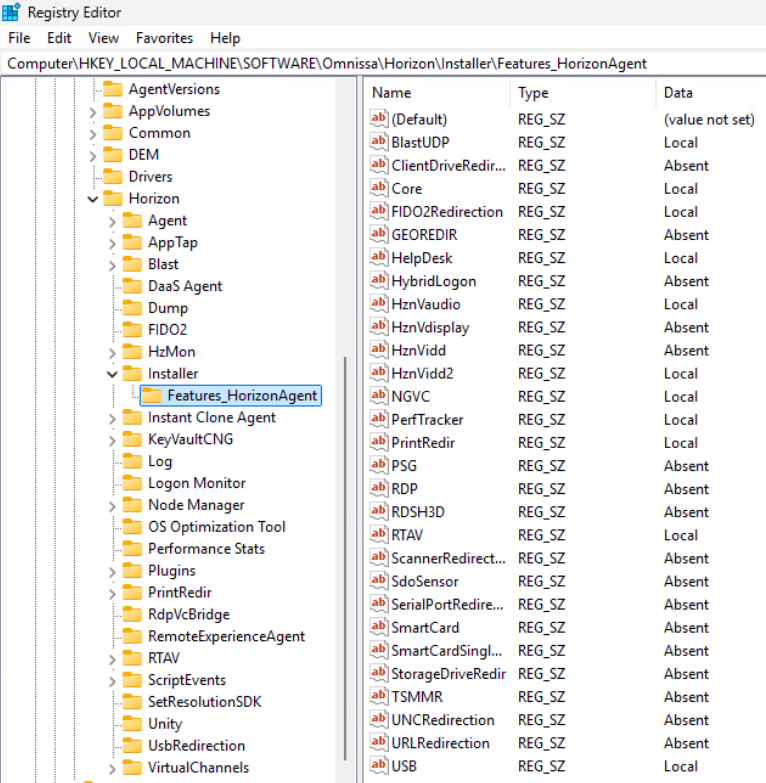
Features that are available have a value of “Local”. Features not available are listed as “Absent”
Let’s say you wish to enable one of the features without having to re-install the entire agent. In this example, I will enable ClientDriveRedirection
Open a command prompt and browse to where the Horizon Agent installer resides.
Run the following command:

The installer may initiate a reboot. After the reboot, launch regedit and browse to the above mentioned location to check whether ClientDriveRedirection is enabled.
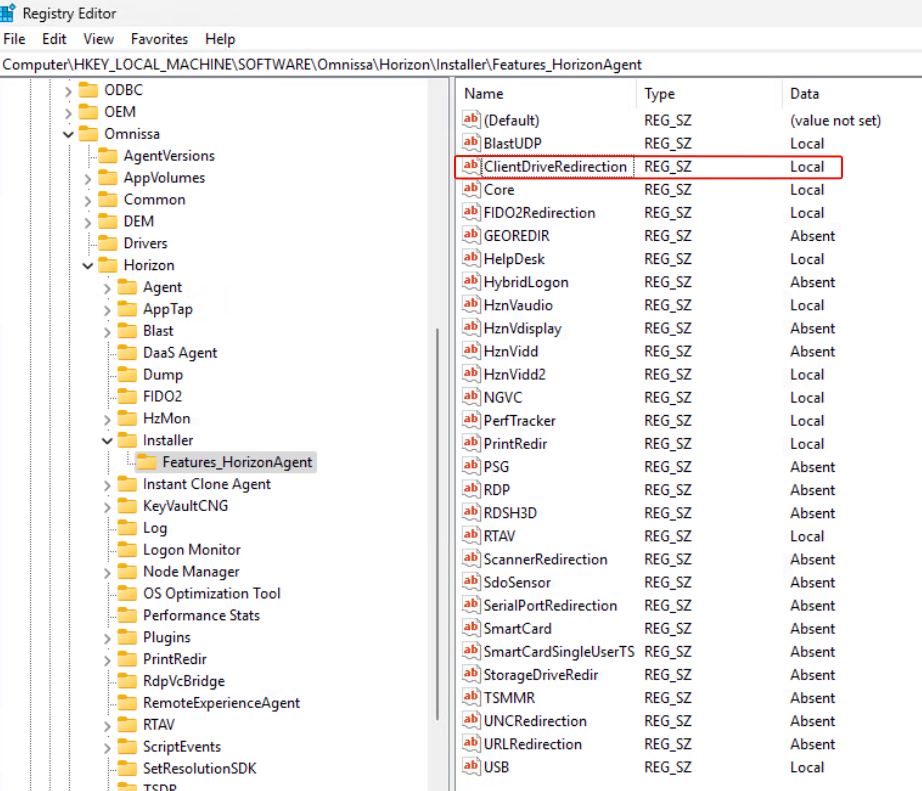
As we can see now, ClientDriveRedirection is now enabled.
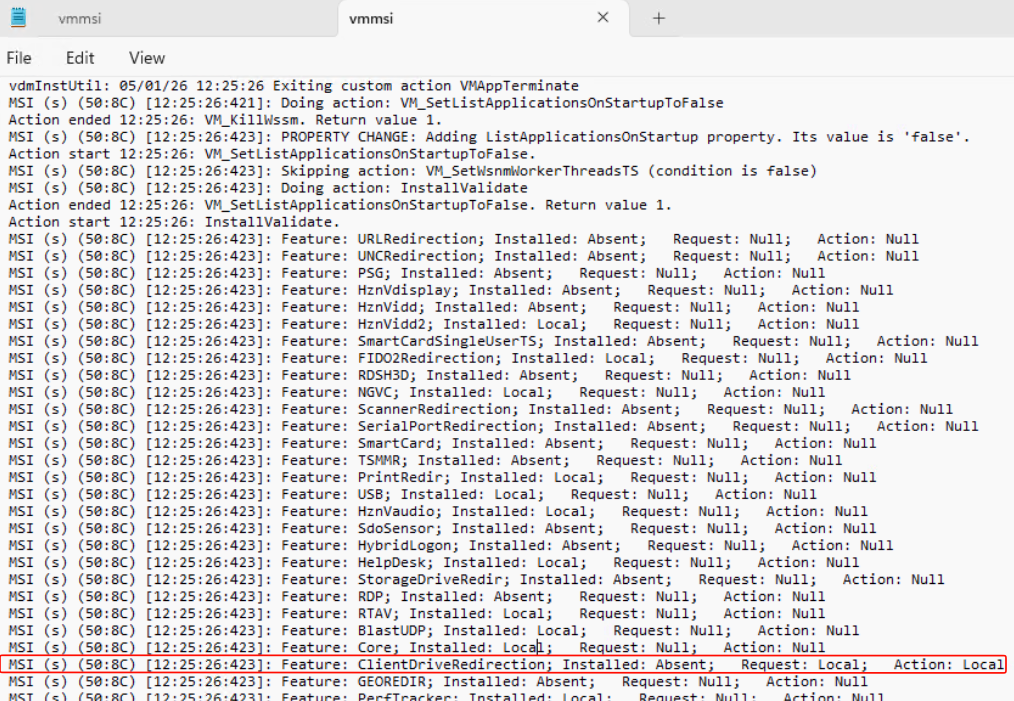
Here we can see the log entry for the installer confirming the install