

William Lam recently posted about the availability of a new ‘Fling’. The AMD Zen4/Zen5 IPMI thermal driver for ESXi. For those of us running AMD hardware like the GMKtec K8 Plus, it’s a useful addition that gives ESXi better visibility into thermal and power data on AMD Zen-based processors.
In this post I’ll walk through how to install it. It’s straightforward, takes a few minutes, and is well worth doing if AMD silicon is powering your homelab. The machine I am installing this on is the GMKtec K8 Plus. (You can see my reivew here)
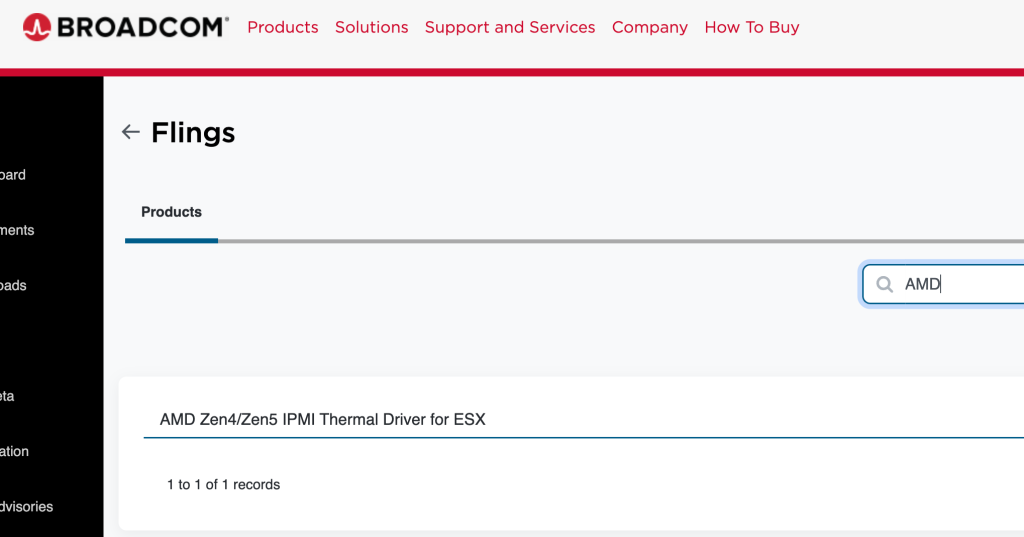
I downloaded the file from the Free Downloads section on the Broadcom portal
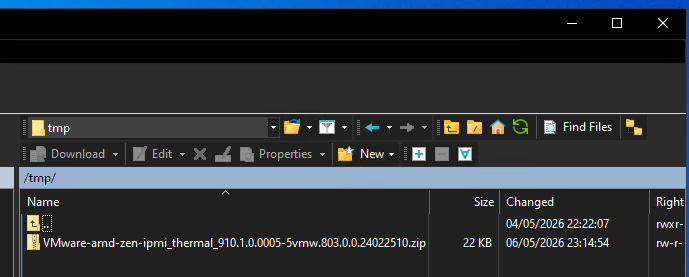
I use WinSCP to connect to my ESXi host
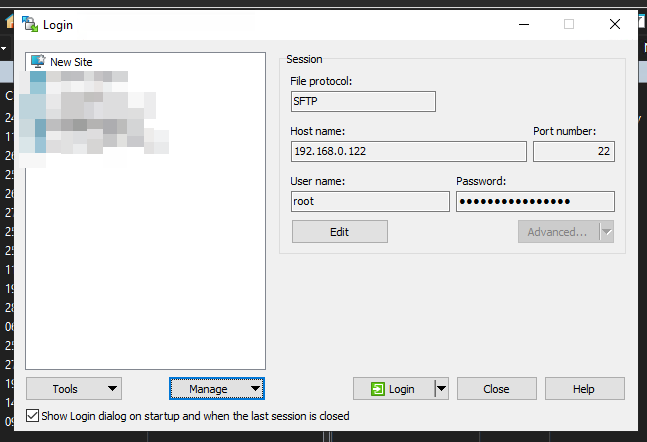
After connecting to the host, I upload the driver to the /tmp directory on the ESXi host
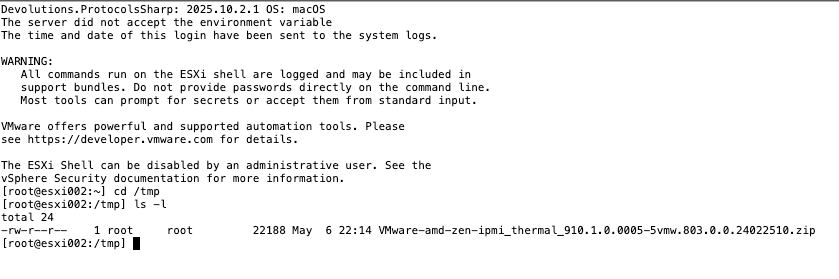
Next I SSH to the host and browse to the /tmp directory
To install the driver, run the following command
esxcli software component apply -d /tmp/VMware-amd-zen-ipmi_thermal_910.1.0.0005-5vmw.803.0.0.24022510.zipAfter approximately 5 minutes, the Install completes and you are prompted to reboot to apply changes
[root@esxi002:/tmp] esxcli software component apply -d /tmp/VMware-amd-zen-ipmi_thermal_910.1.0.0005-5vmw.803.0.0.24022510.zip

Installation Result
   Message: The update completed successfully, but the system needs to be rebooted for the changes to be effective.
   Components Installed: VMware-smntemp_910.1.0.0005-5vmw.803.0.0.24022510
   Components Removed:
   Components Skipped:
   Reboot Required: true
   DPU Results:
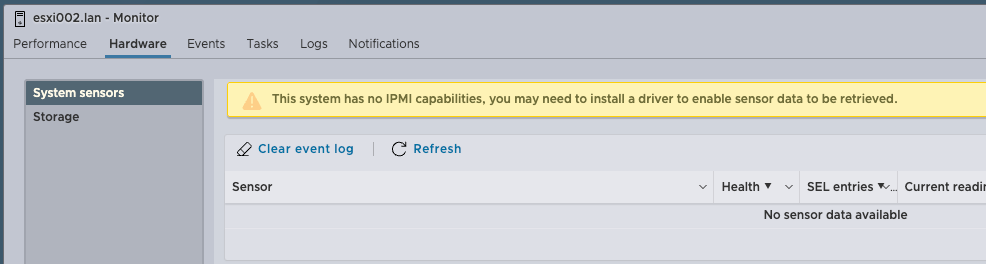
After reboot, I logged on to the ESXi host and unfortunately nothing displays under System Sensors
So I run the following command in an SSH session to add support for my CPU (Taken from William Lam’s blog post)
lspci -v | grep -A2 '0000:00:18.3' | grep '1022' | awk '/Class/{gsub(":","",$3);print "regtype=native,bus=pci,id="$3"..............,driver=smntemp"}' | tee /etc/vmware/default.map.d/smntemp_extra.map

kill -SIGHUP $(pidof vmkdevmgr)
I then run the following to see if I am getting any data back from the CPU…
esxcli hardware ipmi sdr listAnd success


This concludes the post on how to install the Zen4/Zen5 IPMI driver. Feel free to visit William Lam’s original blog post for further guidance, especially on how to retrieve these metrics via other methods such as PowerCLI.