
If you’re running Omnissa Horizon on Windows Server 2022 and planning a move to Windows Server 2025, you might be expecting a straightforward rolling replacement. And for the most part, it is — but there are a few hidden gotchas that have caught people out, and skipping over them can leave you with a broken pod and a very bad day. The good news is that as of Horizon 8 v2503, full support for Windows Server 2025 in brownfield environments is now official — meaning you can introduce Server 2025 Connection Servers into an existing pod without starting from scratch. The catch? Windows Server 2025 defaults to AD LDS functional level 7, while older Connection Servers running 2016 through 2022 typically sit at level 2 — and those two don’t play nicely together. On top of that, a Microsoft patch from April 2025 introduced an LDAP replication problem when mixing Server 2025 with older Windows versions, which wasn’t resolved until the November 2025 patch release. In this post, we’ll walk through what you need to check before you spin up that first Server 2025 node, how to handle the functional level upgrade, and how to complete the migration cleanly without disrupting your users.
This post will assume that the Server 2025 OS has already been installed and is ready to accept the Horizon Connection Server installation.
There are some prerequisites before we get started:
- The Horizon version must be 2503 or later
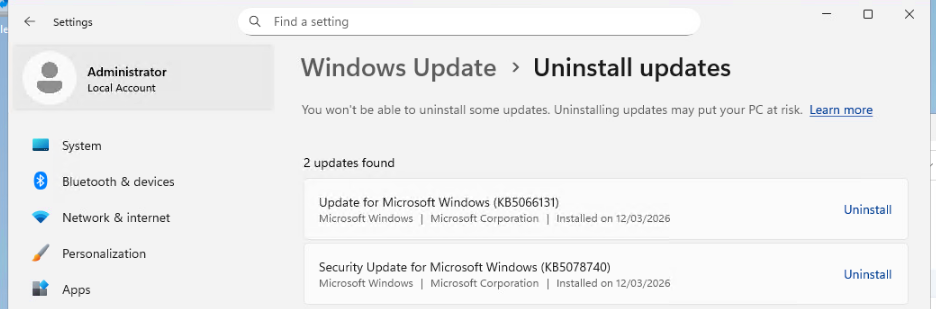
- All Windows 2025 machines hosting the Connection Server must have the Microsoft November 11, 2025 patch (or later) installed. This is required for:
- AD LDS functional level update: Without the required patch, updating the AD LDS functional level will cause the AD LDS instance to fail. Refer to Microsoft’s documentation: AD LDS service startup fails if updated without required patches.
- LDAP replication fix: The April 8, 2025 update (KB5055523) introduced an LDAP replication issue when Windows Server 2025 is mixed with older Windows versions. The November 11, 2025 patch (kb5068861) resolves this issue.
- No Connection Servers should be running on operating systems earlier than Windows Server 2016
- Upgrade all Horizon connection servers in the pod to version 2503 or above. If your environment includes Cloud Pod Architecture (CPA), upgrade all pods in the federation before proceeding.
- Before running the script, ensure that all connection servers in the environment are healthy and without replication errors.
- Windows service ‘Active Directory Web Services’ should be running in Horizon Connection Server machine where script is being executed.
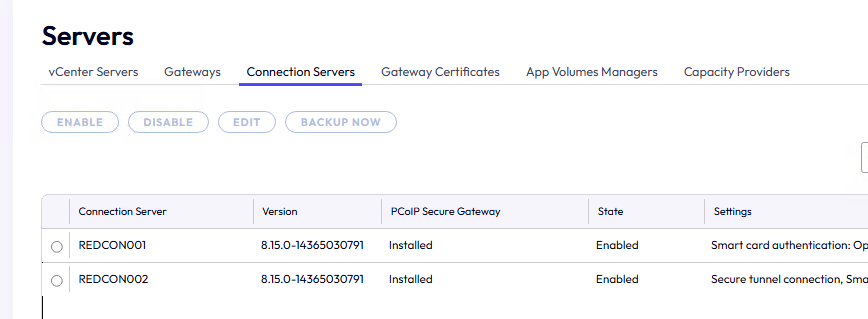
Here in my environment, you can see I have two connection servers. They are both running on Windows Server 2022 and are both running v2503
I ensure my servers are patched as per the prerequisits
Download the Powershell script ‘UpdateFuncionalLevel-v1.ps1’ attached to the KB article https://kb.omnissa.com/s/article/6000960. Place the script on one of the existing Connection Servers in your Pod
Open an elevated Powershell window and browse to the directory where the script is. Run the script.
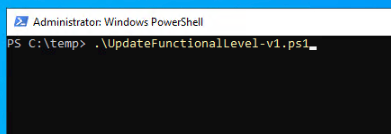
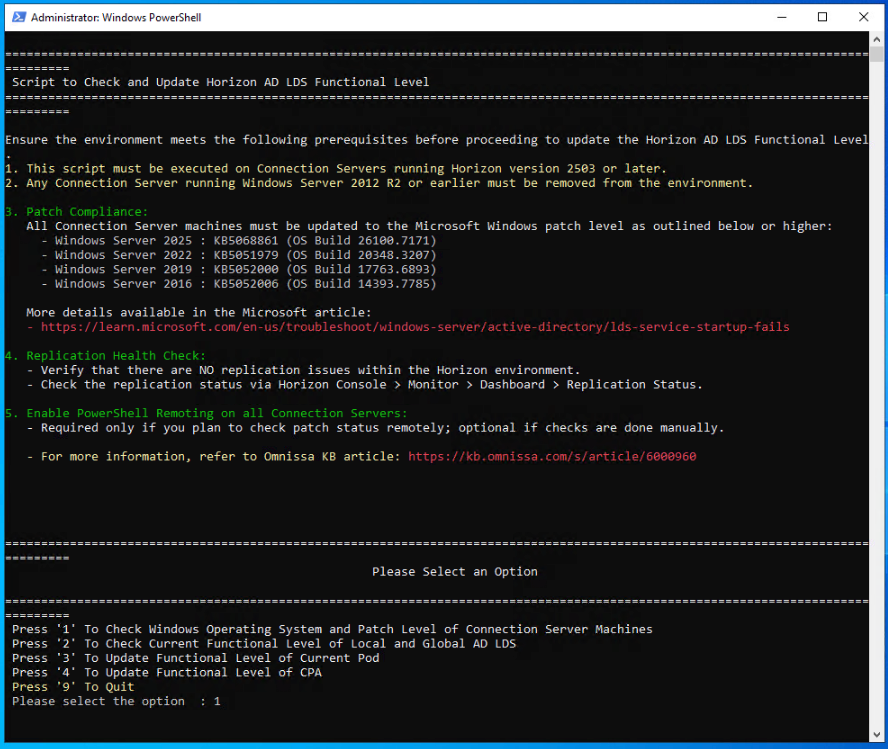
You will be presented with the below screen. Choose Option 1 to check the patch levels of the Connection Servers
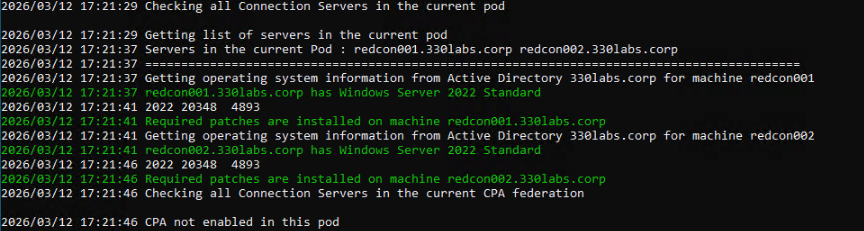
Once the checks are complete. Choose Option 2.
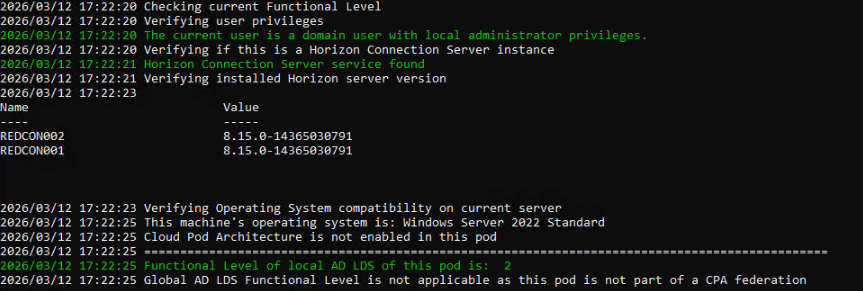
Once the functional level check is complete. Press Option 3 to update the functional level of the current pod.

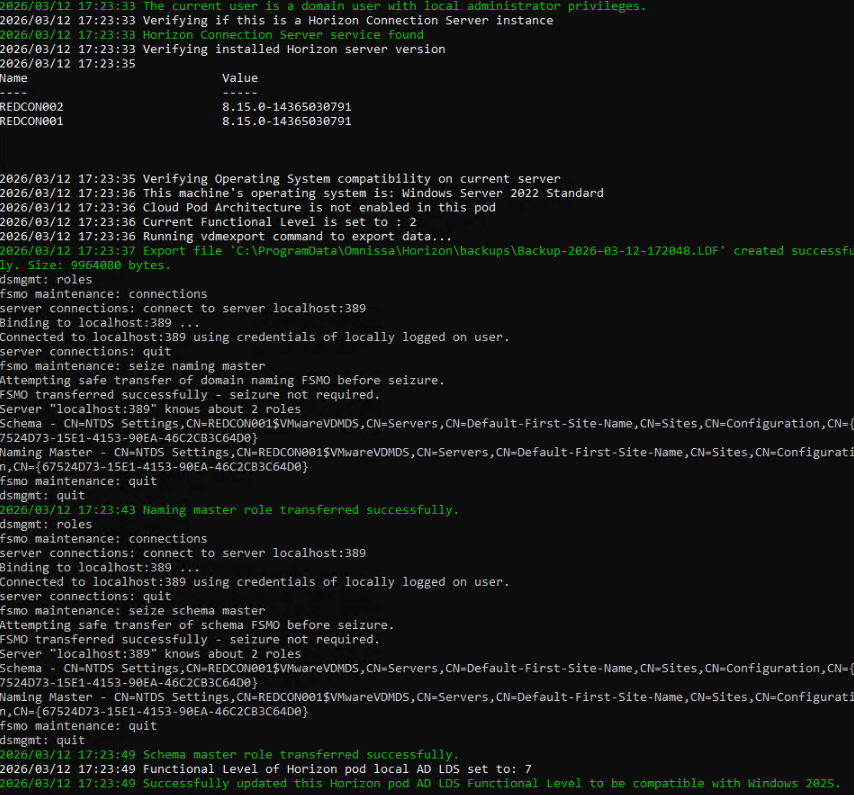
Once complete, there is no need to run this script again.
Head over to the new Server 2025 Connection Server. You can now begin the install of the Connection Server software.
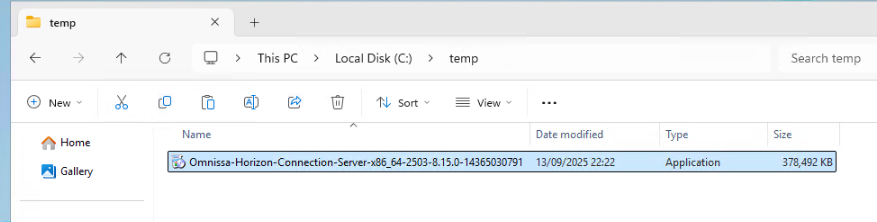
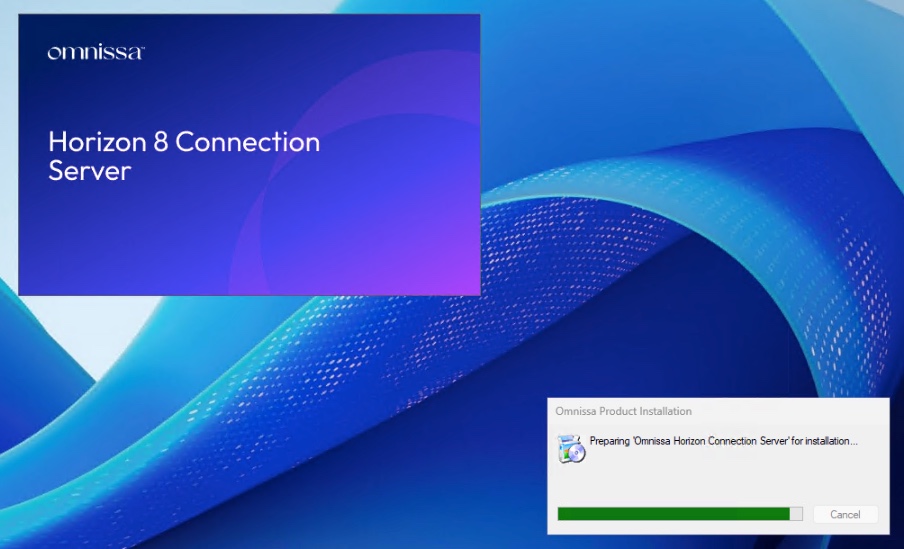
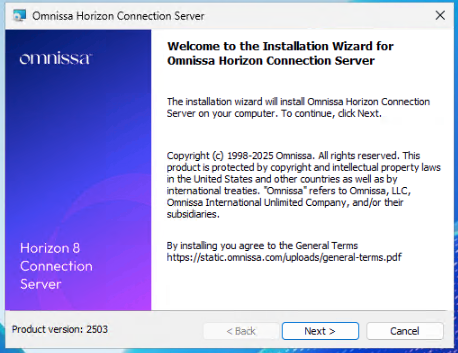
Press Next to proceed
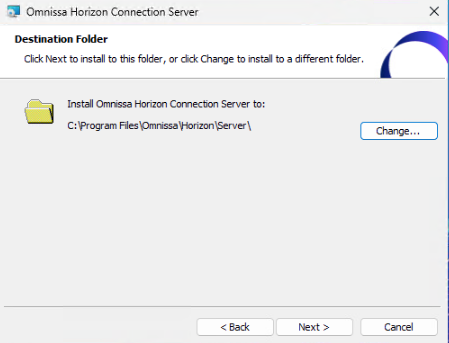
Accept the default install directory and press Next
Select ‘Replica Server’ and press Next
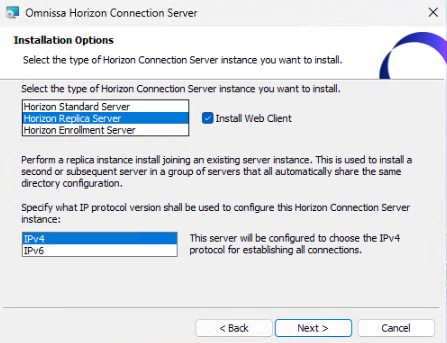
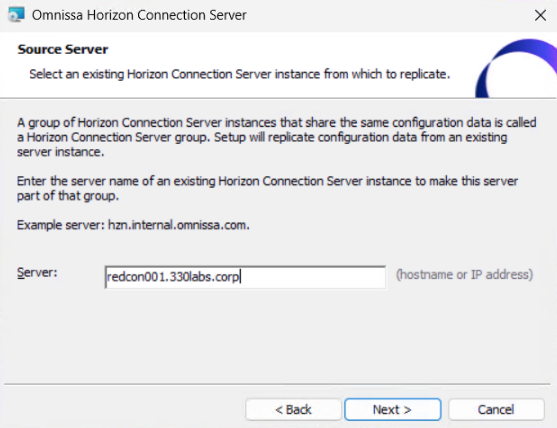
Enter the FQDN of an existing Connection Server in the pod and press Next
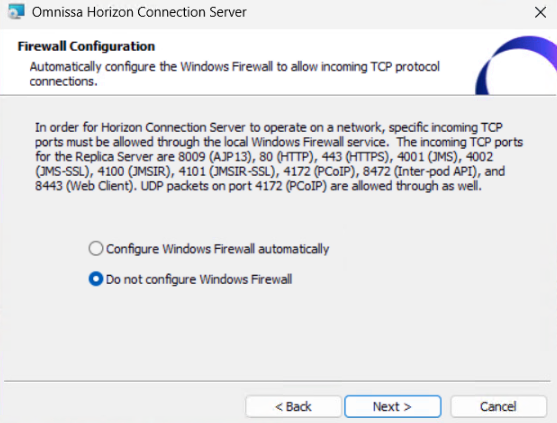
The firewall in my environment is configured via GPO so I select ‘Do not configure Windows Firewall’
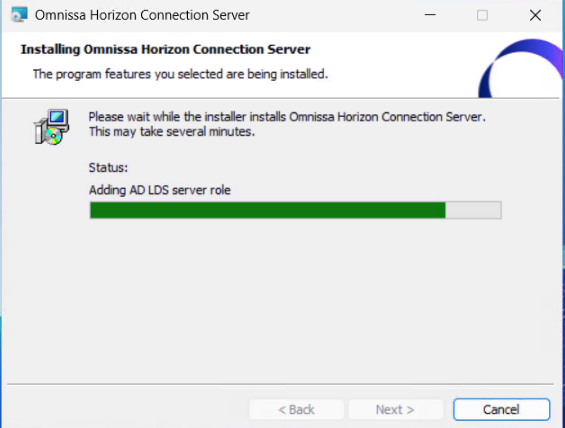
Press Install to start the installation process.
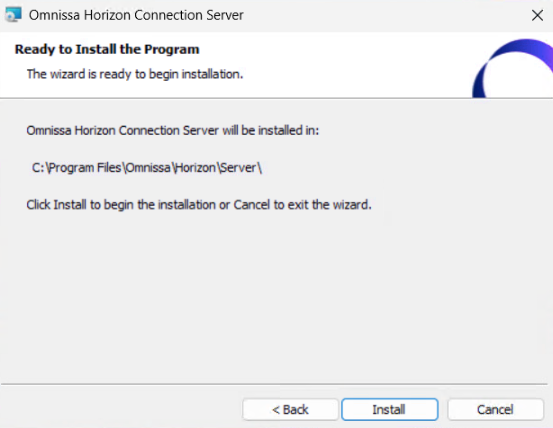
The installation process can take up to 30 minutes
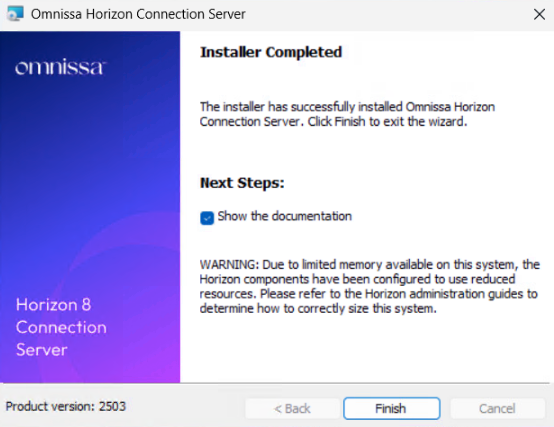
Once complete press Finish
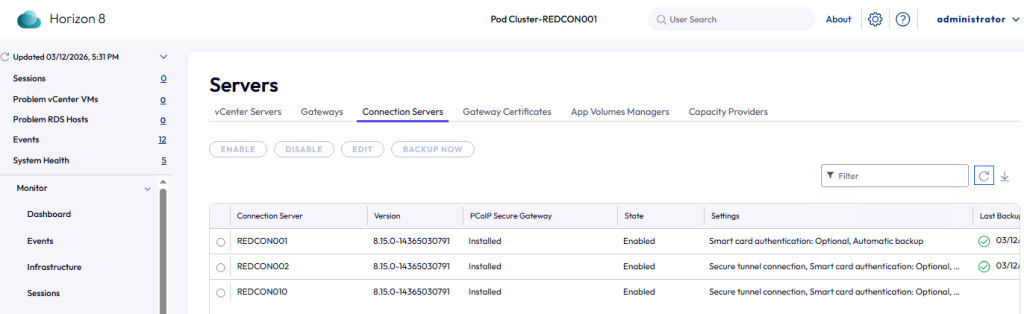
Head over to the Horizon admin console. You will now see the new Server 2025 Connection Server listed.
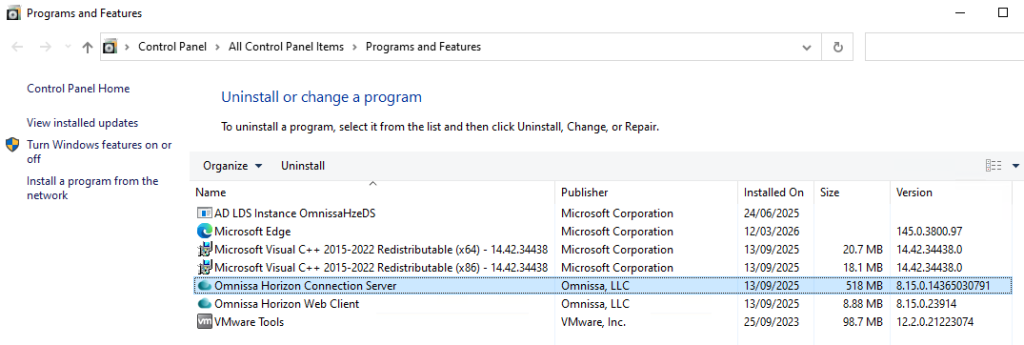
RDP to the Connection Server you wish to remove from the Pod. Uninstall the Omnissa Horizon Connection Server and AD LDS Instance softwares
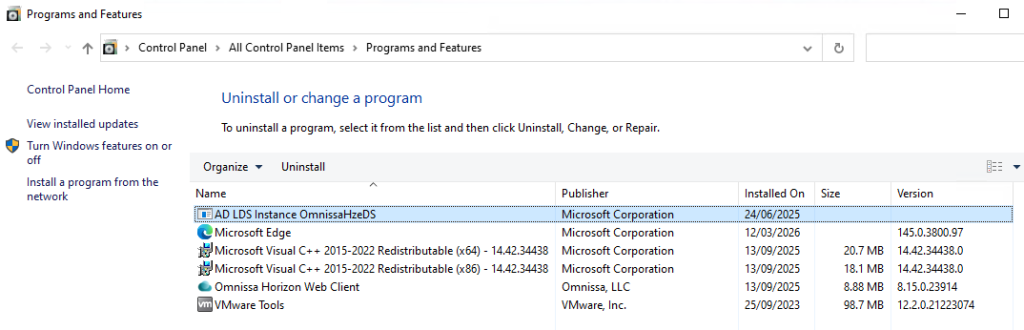
Once uninstalled, RDP to the new Server 2025 Connection Server (or any other Connection Server in the pod except for the one you wish to remove).
Open an elevated command prompt and navigate to C:\Program Files\Omnissa\Horizon\Server\tools\bin and run the following command .\vdmadmin.exe -S -r -s <connectionserver> replacing <connectionserver> with the name of the Connection Server you are removing
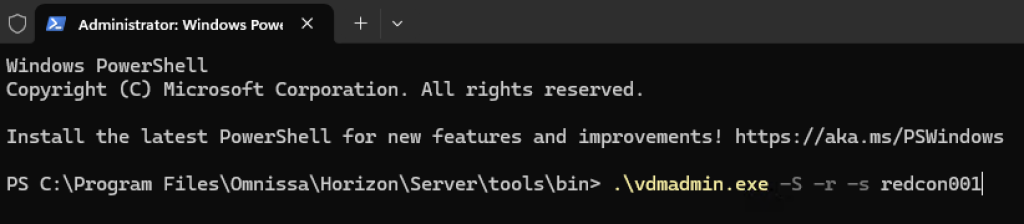

Head back over to the Horizon admin console and you will see the old Connection Server has now been removed from the pod.
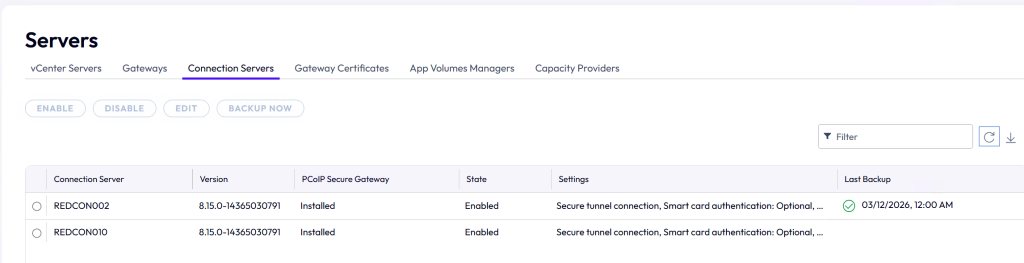
Simply follow the above steps to remove any more Connection Servers from the pod, however you do not have to run the ‘UpdateFuncionalLevel-v1.ps1‘ script again.