
If you’re running VMware App Volumes in your VDI environment, the next step in your upgrade process is to bring this component up to date. To ensure minimal disruption to users, it’s best to plan a maintenance window during off-peak hours. This helps reduce traffic on the system and keeps service interruptions to a minimum.
Before you begin, backups are critical. Make sure you have a recent backup of the App Volumes database. In addition, take a full backup or snapshot of the App Volumes Manager server. These safety measures will allow you to quickly restore services if anything goes wrong during the upgrade.
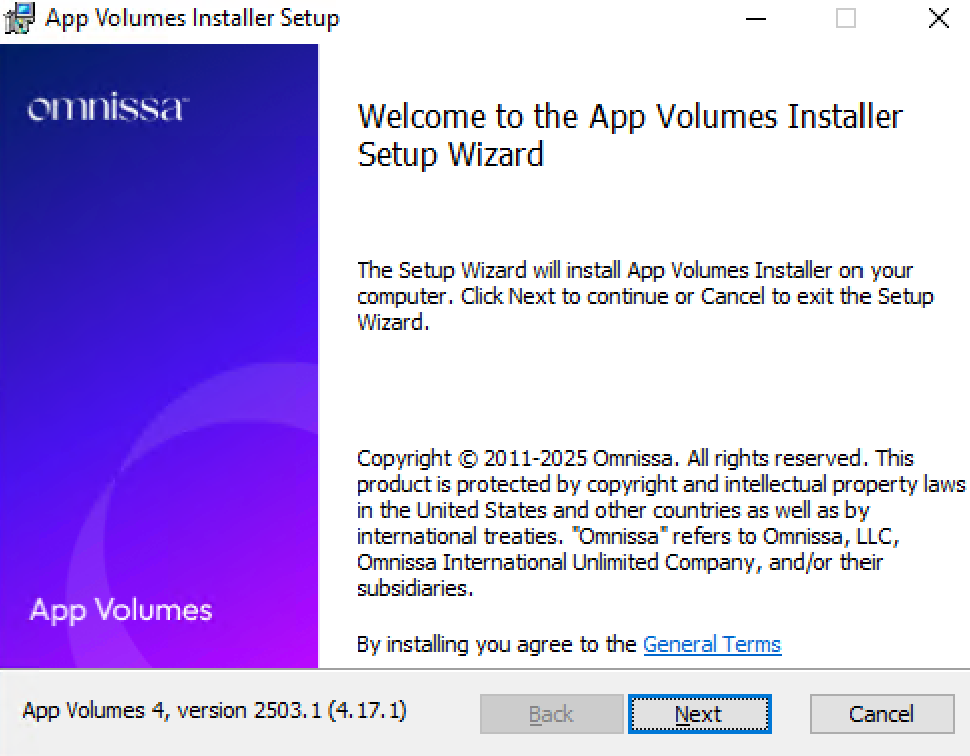
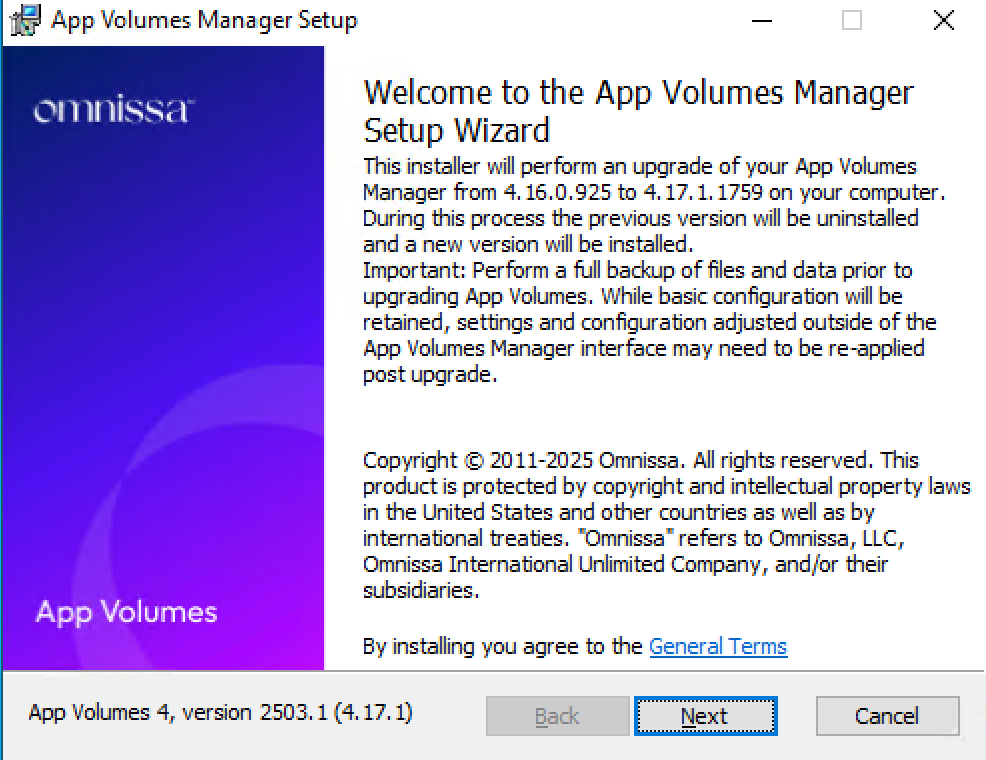
Once your environment is prepared, download the latest App Volumes Manager release from Omnissa. Run the installer and follow the on-screen instructions, starting by clicking “Next” to begin the installation process.
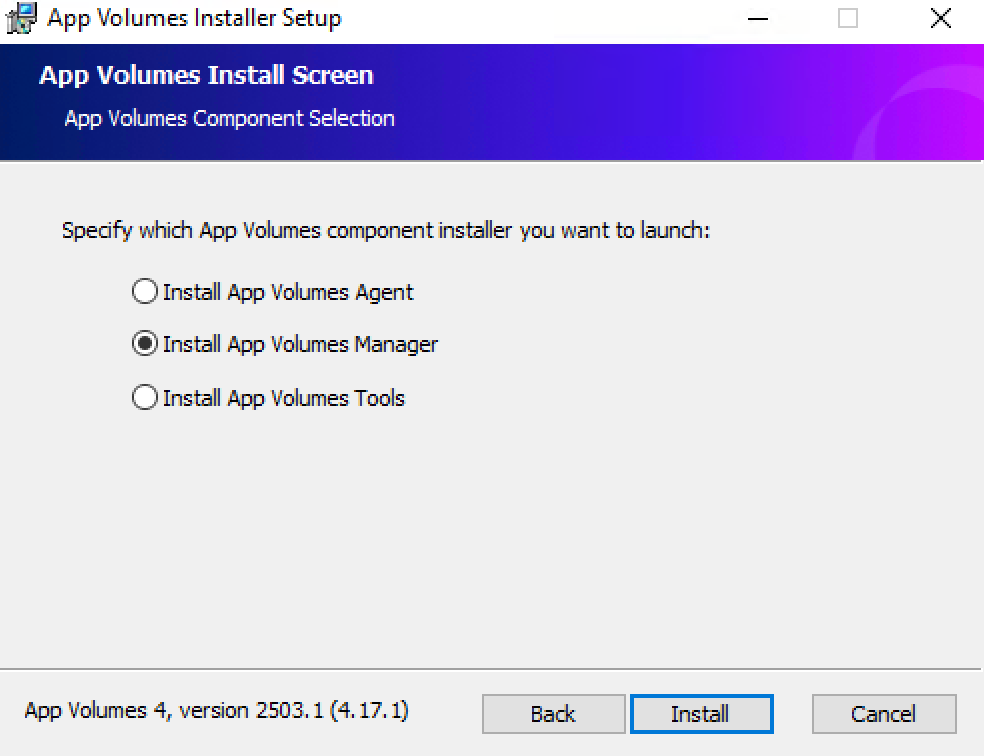
Select ‘Install App Volumes Manager’ and press ‘Install’
Press ‘Next’
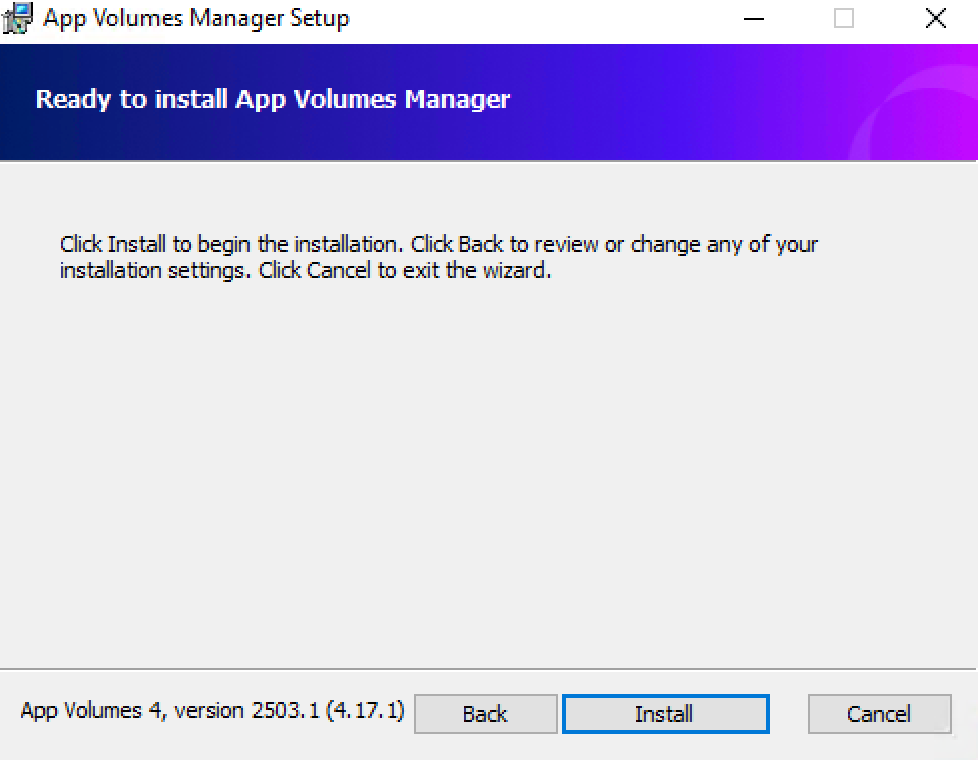
Press ‘Install’
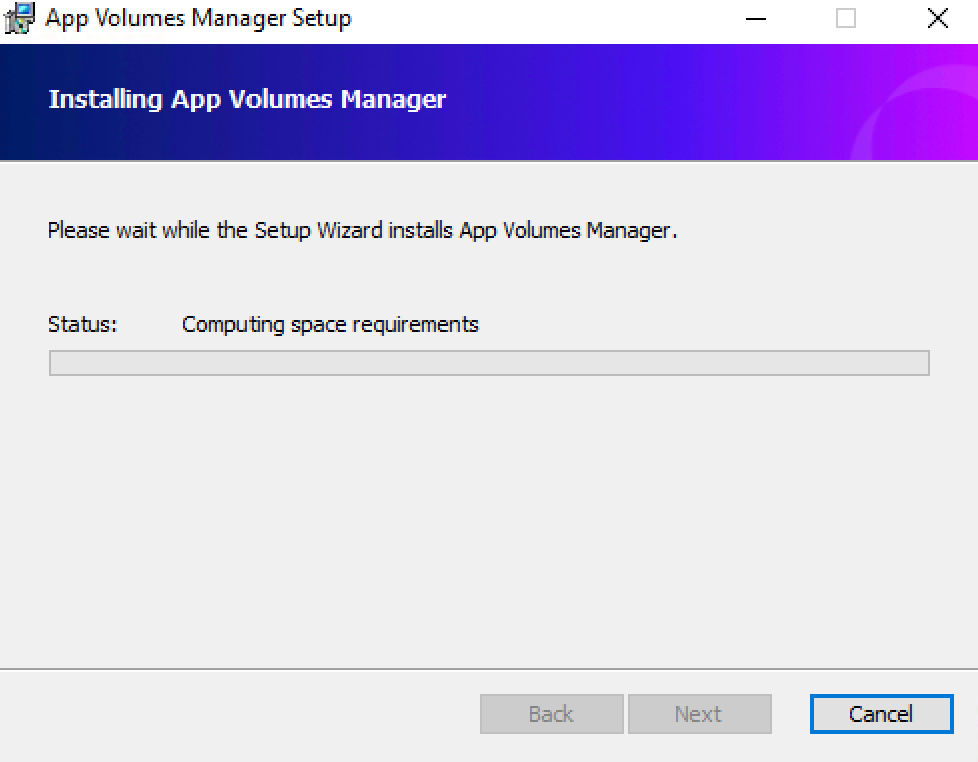
The install procedure can take a few minutes.
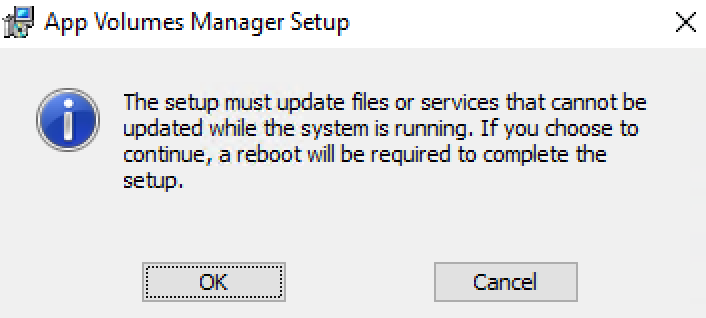
Press ‘OK’ to reboot
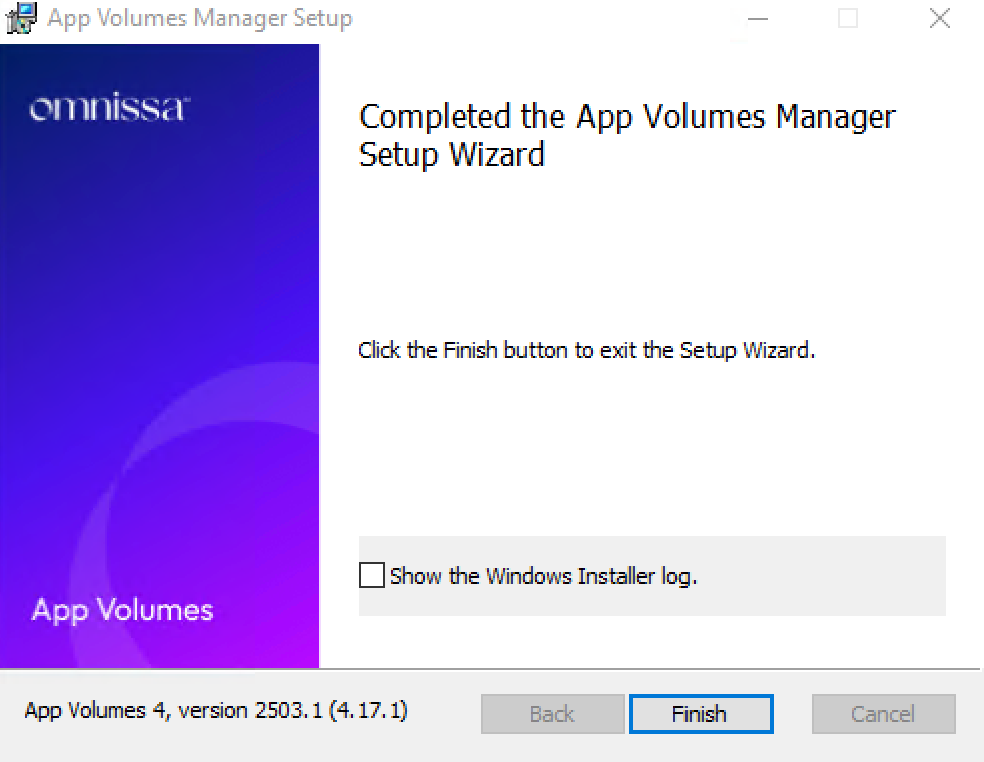
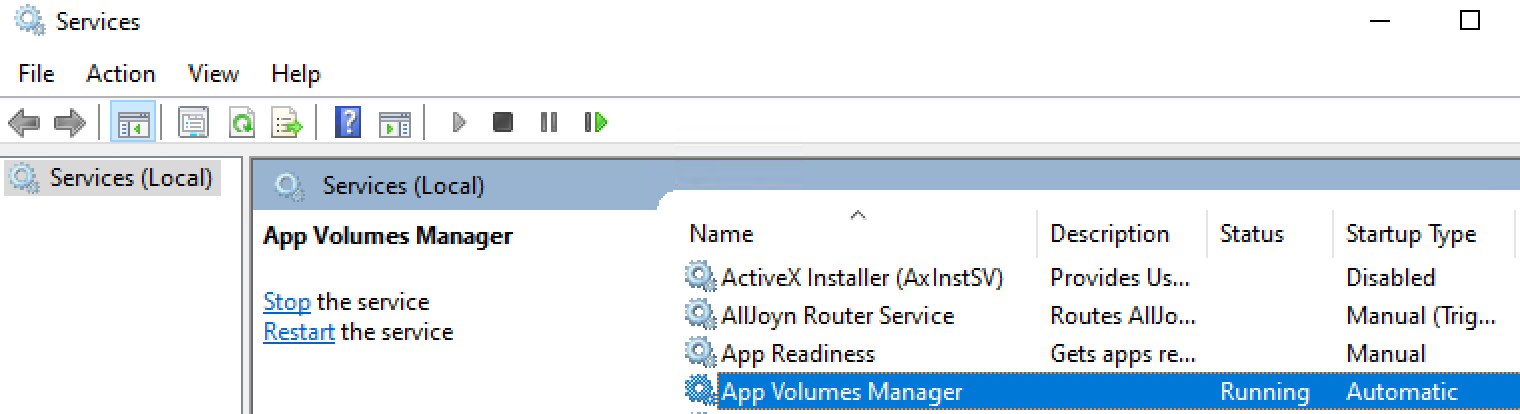
Once the server has rebooted, ensure the App Volumes service is running
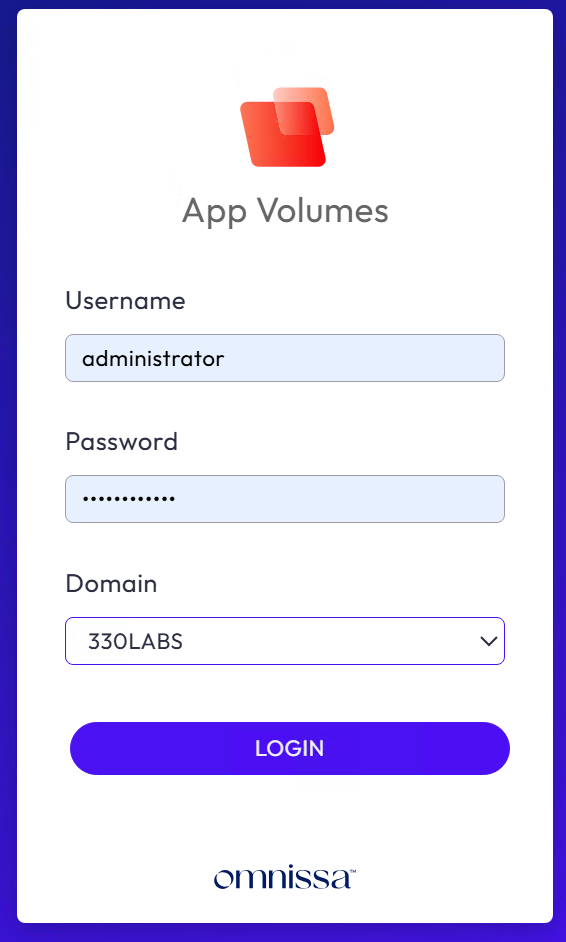
Log on to the App Volumes manager admin interface and login
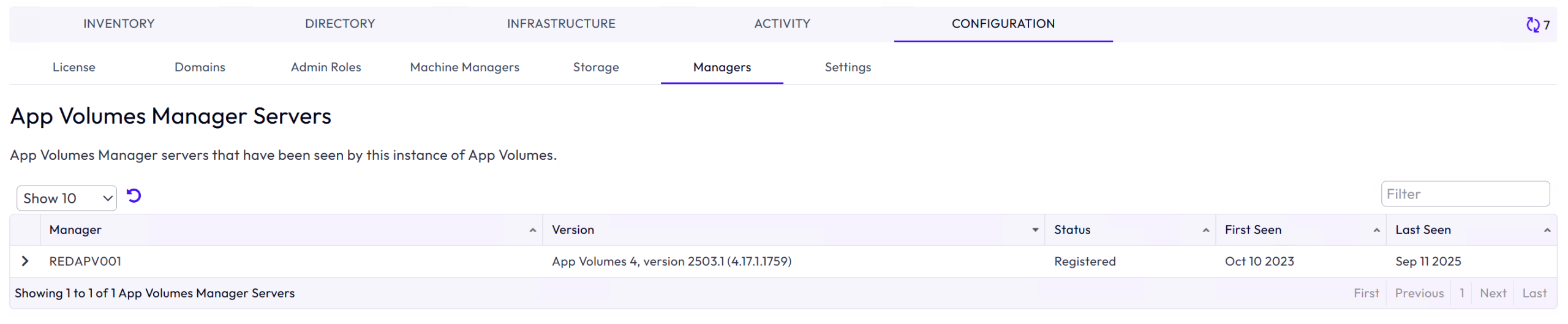
Navigate to Configuration > Managers and note the new version number
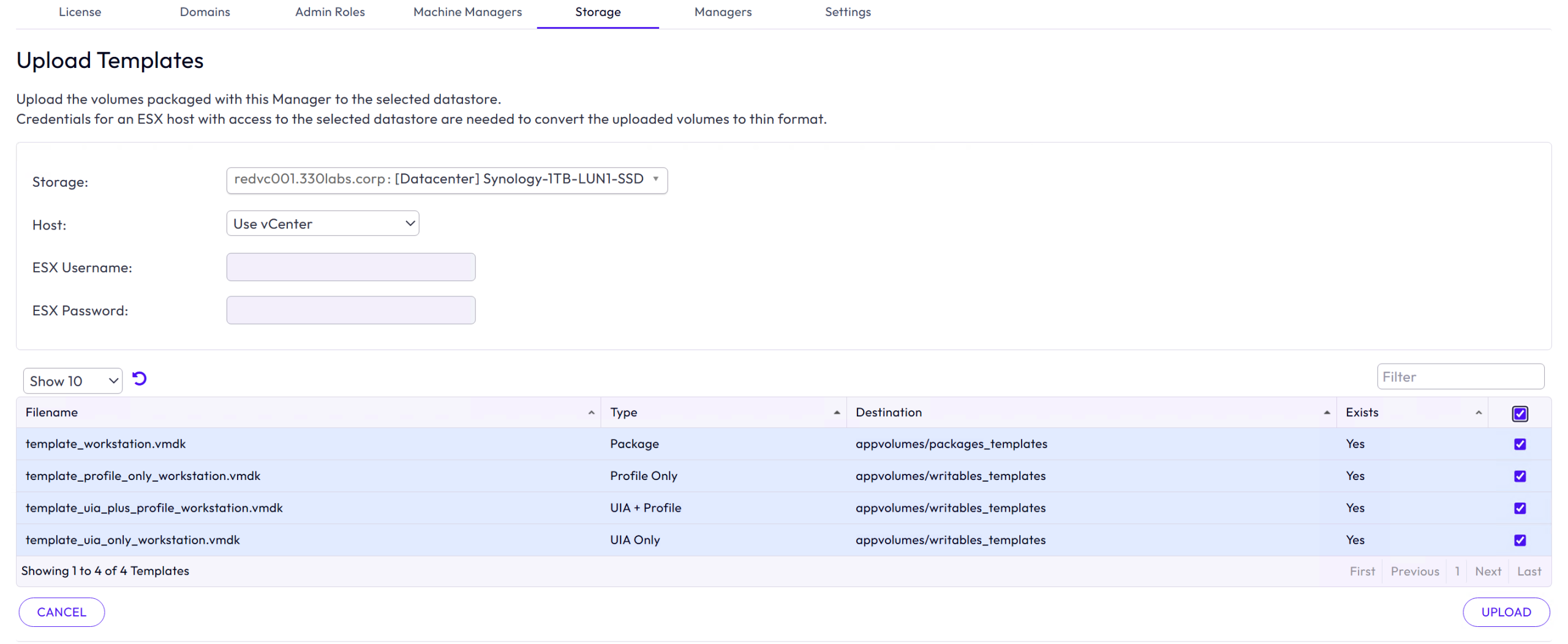
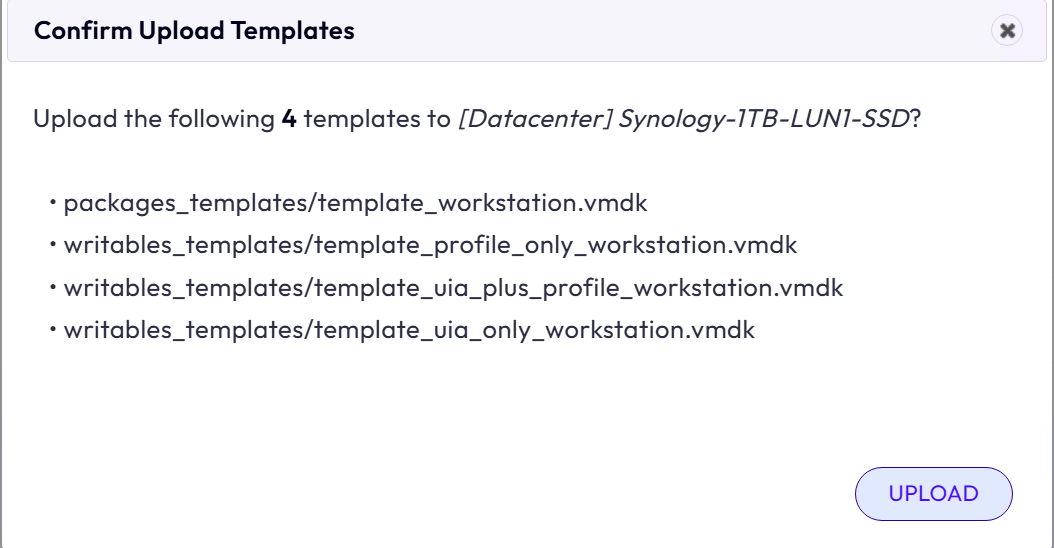
Navigate to Storage and update your templates
With App Volumes now updated, the next step is to look at the remaining Horizon components. In upcoming posts, I’ll walk through how to upgrade Connection Servers, Unified Access Gateways, and other key pieces of the Horizon stack — so stay tuned for the rest of the series.