
Introduction
When working with Omnissa Horizon and Dynamic Environment Manager (DEM), most people focus on user logon scripts—but sometimes you need things to happen before a user signs in.
That’s where computer startup scripts come in.
Running scripts at startup lets you handle system-level tasks like setting machine-wide registry keys, starting services, or preparing non-persistent desktops before users log in. It can also help speed up logon times by moving work out of the user session.
In this guide, I’ll show you how to enable and use computer startup scripts with DEM, so you can get more control over your environment and deliver a smoother experience for your users.
Requirements
In order to configure startup scripts to run via DEM, you need to make changes to your gold image. Your gold image should be built and configured using the best practice guides available from Omnissa.
Steps
First, log on to your gold image and launch local group policy editor
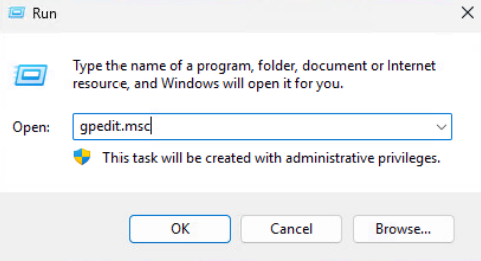
Next, navigate to:
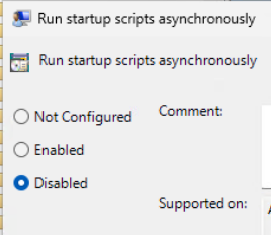
Local Computer Policy > Computer Configuration > Administrative Templates > System > Scripts
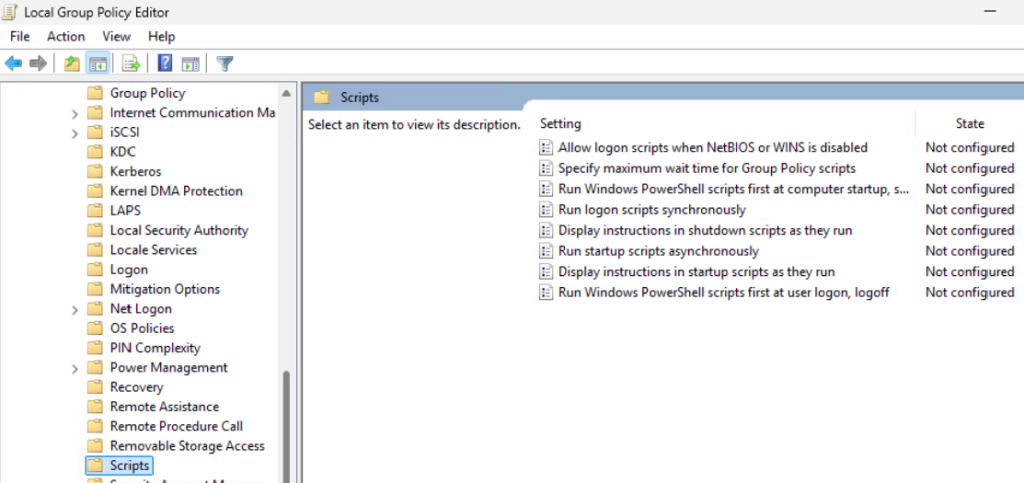
Disable the Run startup scripts asynchronously policy setting.
Navigate to: Local Computer Policy > Computer Configuration > Windows Settings > Scripts (Startup)
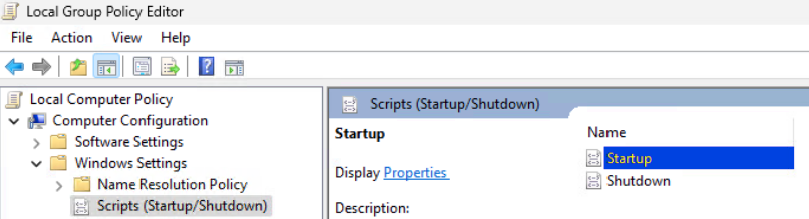
Configure the Startup scripts by specifying the following property values.
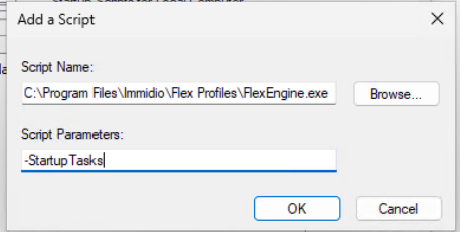
Press OK.
For this tutorial, I will place a sample Powershell script that will run on startup. The script will generate a log file confirming that the startup script ran successfully.
The contents of my test script are as following:
# Test-Startup.ps1
# Simple computer startup script test

# Define a log folder
$logFolder = "C:\Temp"
if (!(Test-Path $logFolder)) {
    New-Item -ItemType Directory -Path $logFolder -Force | Out-Null
}

# Log file path
$logPath = "$logFolder\StartupScriptLog.txt"

# Add a timestamped entry
$timeStamp = Get-Date -Format "yyyy-MM-dd HH:mm:ss"
"Computer startup script executed at $timeStamp" | Out-File -FilePath $logPath -Append
Copy the contents above and place it in a file called Test-Startup.ps1 in the C:\Temp folder
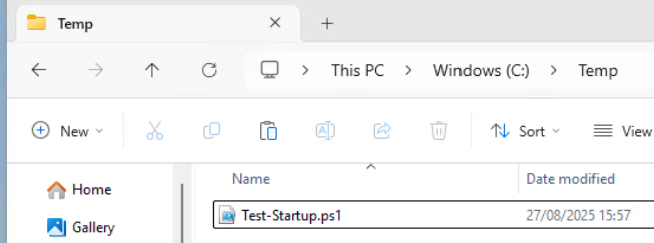
Seal and snapshot your gold image using your current gold image build process for sealing/finalizing a gold image.
Launch DEM Management Console
Navigate to Computer Environment > Startup Tasks and press Create
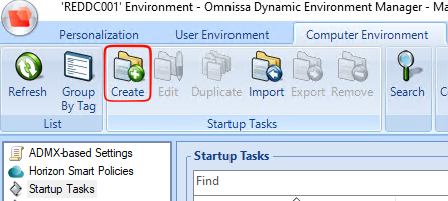
For Name, call it Test-Startup. This can be anything.
For Command enter:
c:\windows\system32\windowspowershell\v1.0\powershell.exe -ExecutionPolicy Bypass -File "C:\Temp\Test-Startup.ps1"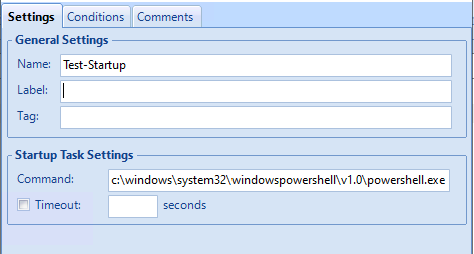
Press Save
You will now see it appear in the list of Startup Tasks
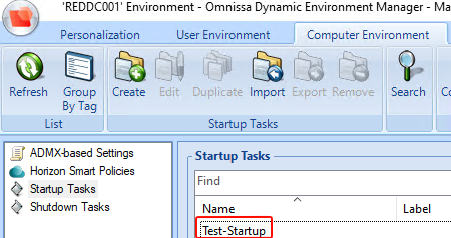
Finally, all you have to do now is to update your desktop pool with the snapshot taken which incorporates the above changes.
Once the Instant Clone machines boot up, any task configured in DEM startup tasks will execute.
Here we can see a log file was generated when the Instant Clone booted up
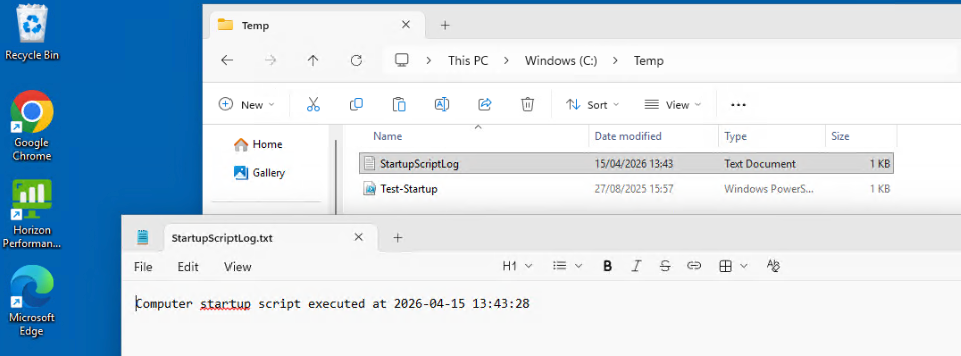
Conclusion
Enabling computer startup scripts with DEM is just about getting more control over what happens before your users log in. It’s a small change, but it can make your environment feel a lot more consistent and predictable—especially with instant clones.
In the real world, I’ve found this useful for things like making sure the App Volumes service is configured properly at startup, or ensuring machines are pointing to the right App Volumes Manager without relying on anything user-driven. It just removes that layer of uncertainty.
Give it a try in your own environment and see where it fits—you’ll probably find a few more use cases once you start thinking in terms of “what can I shift to startup instead of logon?”